... project dossier
Hands-Free Voice Typing for GNOME
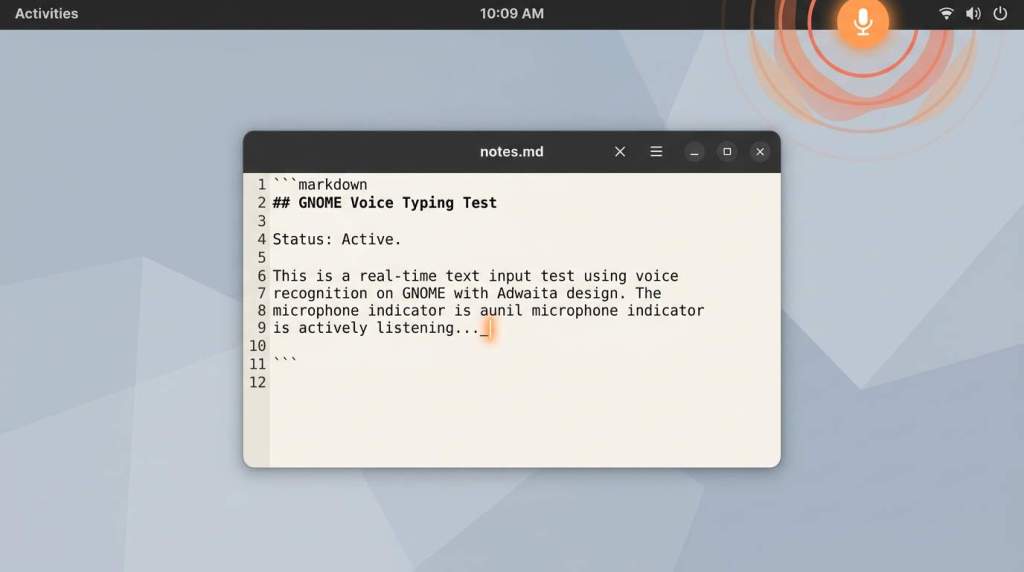
A GNOME Shell extension that turns your voice into typed text. Click a microphone icon, speak, and watch your words appear in any application.
... case study
Full Record
[long form]
I just released Voice Type Input, a GNOME Shell extension that lets you speak and have your words appear as typed text in any application. No browser tab, no extra window, no external daemon. Just a microphone icon in your top panel, always ready when you need it.
We all know how fast voice input can be compared to typing. If you have used voice typing on a phone or tablet, you have probably noticed you can think faster than your fingers can type. But on a Linux desktop, the options have always felt… disconnected. Open a browser and use Google Docs voice typing. Install a standalone app that sits in your system tray. Neither one feels like it belongs on your desktop.
Voice Type Input changes that. It runs inside GNOME Shell itself, so your voice becomes text wherever your cursor is, in any application, on both Wayland and X11.
How it works
Click the microphone icon in your top panel and start speaking. The extension records your audio, sends it to a speech-to-text API, and types the result directly into the focused application.
The text insertion is designed to just work. It uses a four-tier fallback system that automatically picks the best method for your environment. On standard GNOME, it uses the built-in Clutter virtual keyboard, which means no extra tools are needed. If that is not available, it falls back to ydotool, then clipboard paste, and finally puts the text on your clipboard with a notification. You do not need to configure any of this.
Privacy you control
The extension does not lock you into one provider. Use OpenAI, OpenRouter, or any OpenAI-compatible endpoint. Want your audio to stay entirely on your machine? Run a local whisper.cpp server and point the extension at it. Your audio never leaves your computer.
API keys are stored in the system keyring via libsecret, not in plain text configuration files.
Features
- One-click recording toggle with a pulsing animation
- Configurable audio quality (8 kHz, 16 kHz, or 44.1 kHz)
- Recording time limit from 5 to 300 seconds
- Automatic media player pause during recording to reduce background noise
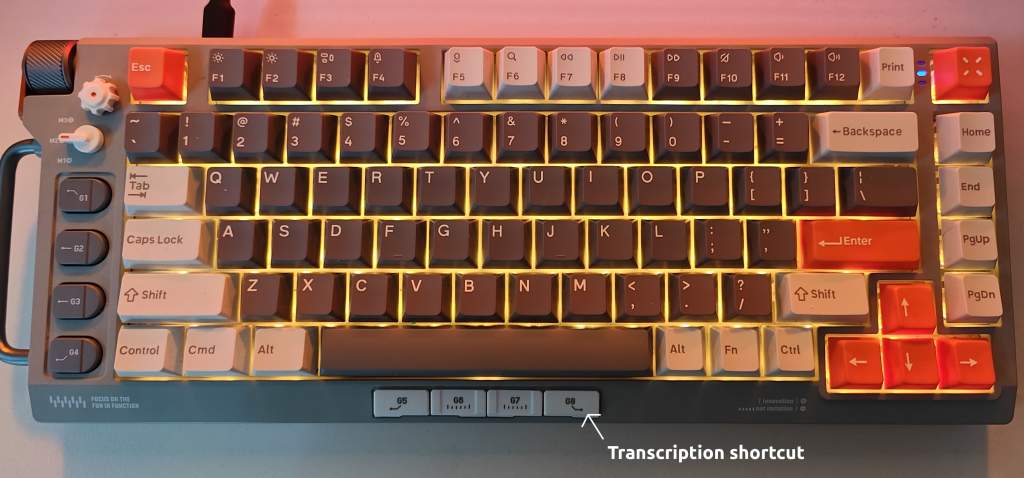
- Global keyboard shortcut (Ctrl+Alt+V by default)
- Debug overlay mode for testing without typing into your active app
- Clipboard preservation when using the paste fallback
Installation
You can install from source:
git clone https://github.com/kevinchappell/gnome-voice-type.git
cd gnome-voice-type
make install
The extension requires GNOME Shell 46 or later. It uses GStreamer for audio recording and works with any OpenAI-compatible speech-to-text endpoint.
The source is available on GitHub under the MIT license: github.com/kevinchappell/gnome-voice-type
Hopefully available soon on extensions.gnome.org as well.